Overview & Planner
The planner lives at Manage → Overview (/manage/overview). It is the first page you see after signing in and keeps the plan-make-stock loop in one place.
Global Search (Command Palette)
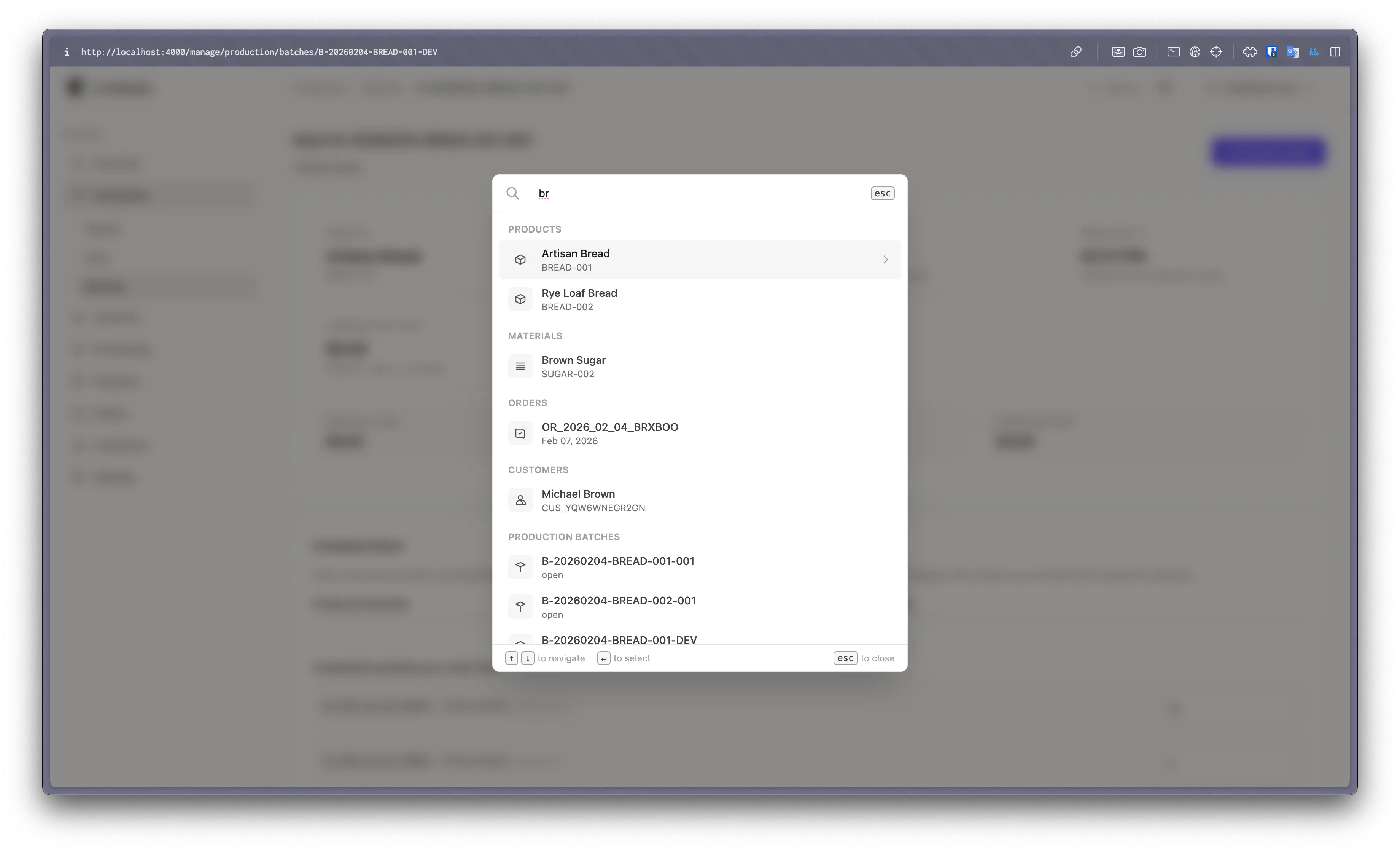
Press Cmd+K (Mac) or Ctrl+K (Windows/Linux) anywhere in Craftplan to open the command palette. It provides instant fuzzy search across all your data:
- Products — Jump to any product by name or SKU
- Materials — Find raw materials and ingredients
- Orders — Search orders by reference or date
- Customers — Look up customers by name
- Production Batches — Locate batches by code
Use arrow keys to navigate results and Enter to select. Press Escape to close.
Layout & Tabs
The planner is organized into four sections:
- Overview (default) — Summarizes today’s orders, outstanding quantities, over-capacity details, and upcoming material shortages.
- Schedule — Day and week views with a kanban board for batch management. The day view defaults on mount.
- Make Sheet — Printable run sheet with a fullscreen dialog. Print via the “Print” button or
Cmd+P/Ctrl+P. - Materials — Rolls up per-material demand, current stock, and shortage warnings for the selected horizon.
The entire surface is LiveView-driven, so switching views or navigating dates keeps state without extra page loads.
Schedule: Day View (Kanban Board)
The day view (/manage/production/schedule?view=day) is the primary workspace for managing production. It presents a four-column kanban board:
- Unbatched — Order items scheduled for the day that have not been assigned to a batch yet. Cards are grouped by product and show total quantity and order count.
- Open — Batches that have been created but not started.
- In Progress — Batches currently being produced.
- Done — Completed batches with consumed materials and cost snapshots.
Working with the Kanban Board
- Drag and drop cards between columns to advance batch status. The board enforces valid transitions (e.g., you cannot skip from Open to Done).
- Click a card to open its detail modal showing allocated orders, quantities, and action buttons.
- Use the Prev / Today / Next controls to navigate between days.
Creating Batches
Click an unbatched card to open its modal, then press Batch All to create a new production batch. This:
- Groups all unbatched order items for that product on the selected day
- Calculates remaining unplanned quantity per item (avoids double-allocation)
- Snapshots the active BOM version and components map
- Auto-generates a unique batch code
Progressing Batches
From the batch detail modal:
- Start — Moves the batch from Open to In Progress and records
started_at. - Mark Done — Opens an inline completion form with fields for produced quantity and optional duration in minutes. Submitting triggers auto-FIFO material consumption and cost snapshot capture.
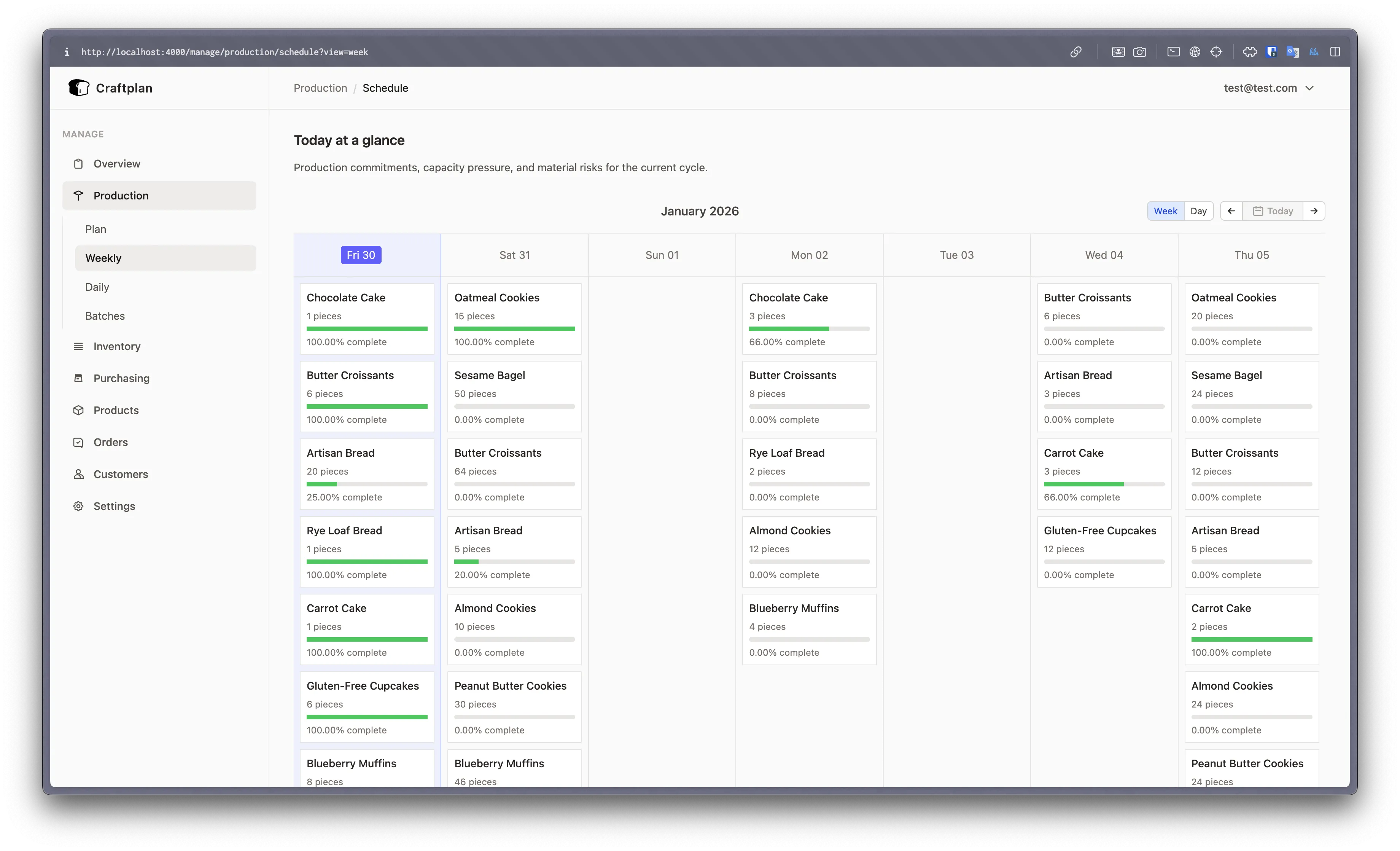
Schedule: Week View
The week view (/manage/production/schedule?view=week) shows a seven-day calendar grid. Each cell displays product cards with quantity summaries and batch status badges. Clicking a card navigates to the day view for that date.
Cards in both views show capacity warnings when a product exceeds its max_daily_quantity.
Overview Dashboard
The overview tab (/manage/overview) displays:
- Orders today — Deliveries scheduled for the current date with reference, customer, and total.
- Outstanding today — Products with remaining todo and in-progress quantities.
- Over-capacity details — Products exceeding their daily production limit.
- Days over order capacity — Days where confirmed orders exceed the global daily cap.
- Upcoming material shortages — Materials where projected end-of-day balance goes negative.
Printing & Quick Actions
- The Make Sheet dialog shows the entire day’s run in a printable table grouped by product, with total and completed quantities.
- The Materials tab mirrors shortage data so you can confirm stock before starting a run.
Tips
- The day view is the default on mount — bookmark
/manage/production/schedulefor one-click access to today’s board. - Week view cards link to the day view on click, so you can quickly drill into a specific day.
- Batch detail modals link to the full batch page (
/manage/production/batches/:batch_code) for deeper inspection. - Order reference badges in modals link back to the order detail page for customer follow-ups.